
Quick contacts New S · M · L · XL
Tap someone to call them over the car's Bluetooth phone.
For the Jetour G700
One strip of glass cards above the dock: weather, energy, what's playing, your car's figures, quick calls, prayer times and your apps. It decorates the car's home screen, steps aside for everything else, and only ever reads from the car.
An impression of the strip. Song and place names are made up.
Widgets
Add the ones you want, repeat them, reorder and resize them. Tap a card for its one job, long-press it for its settings, and + opens the library.
Tap someone to call them over the car's Bluetooth phone.
Today's prayer times for where the car is, worked out offline.
One tap starts the route home or to work, in Google Maps or Waze.
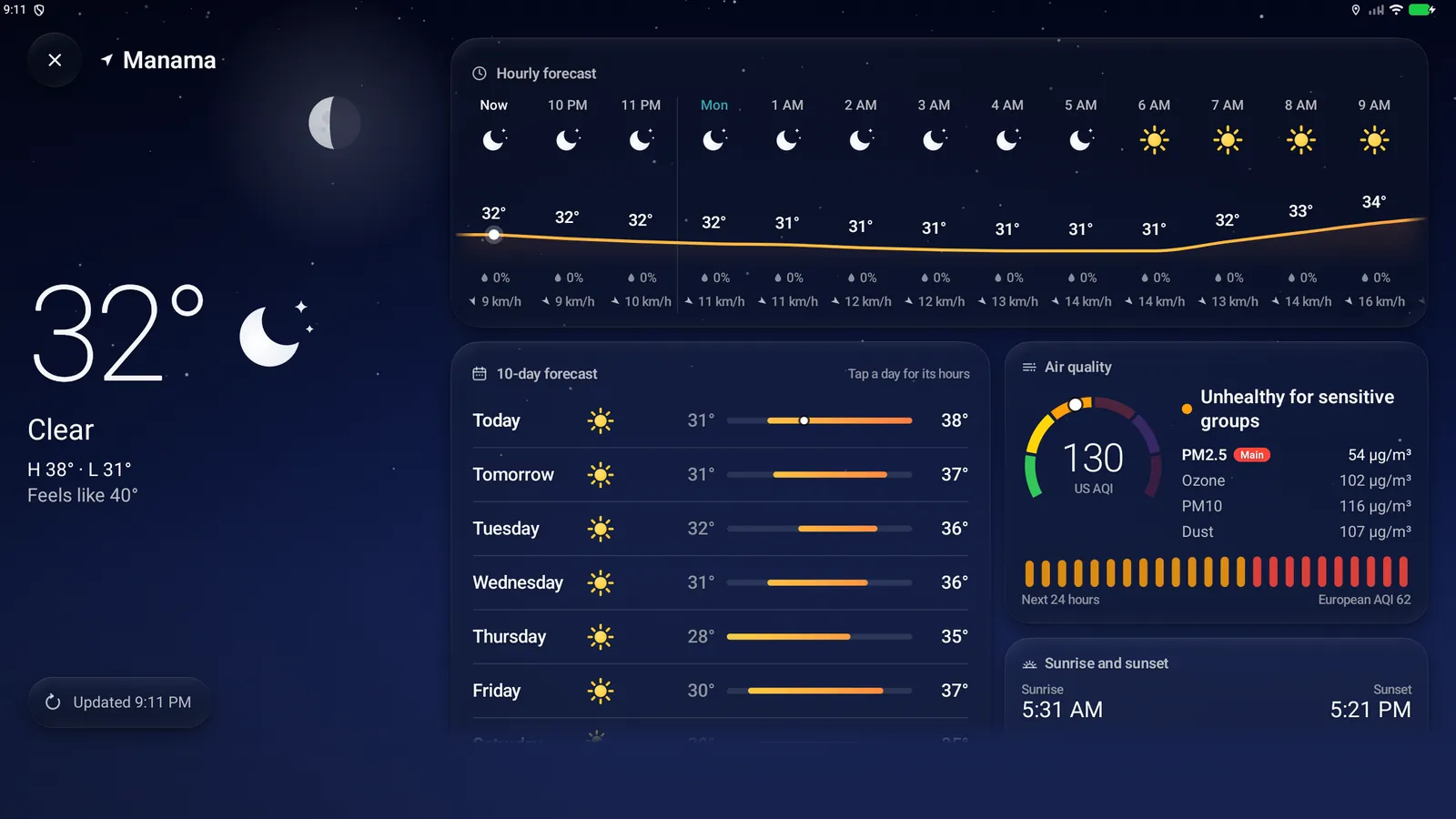
For where the car is or a city you pick. Tap it for the full forecast.
Battery and fuel in percent, as a ring, a bar or plain figures.
Artwork, title and controls. Shown always, while playing or until idle.
Up to six figures you choose: range, levels, temperatures and more.
Pressures and temperatures for all four, with a clear low-pressure warning.
Digital or the new analogue face, with optional date and seconds.
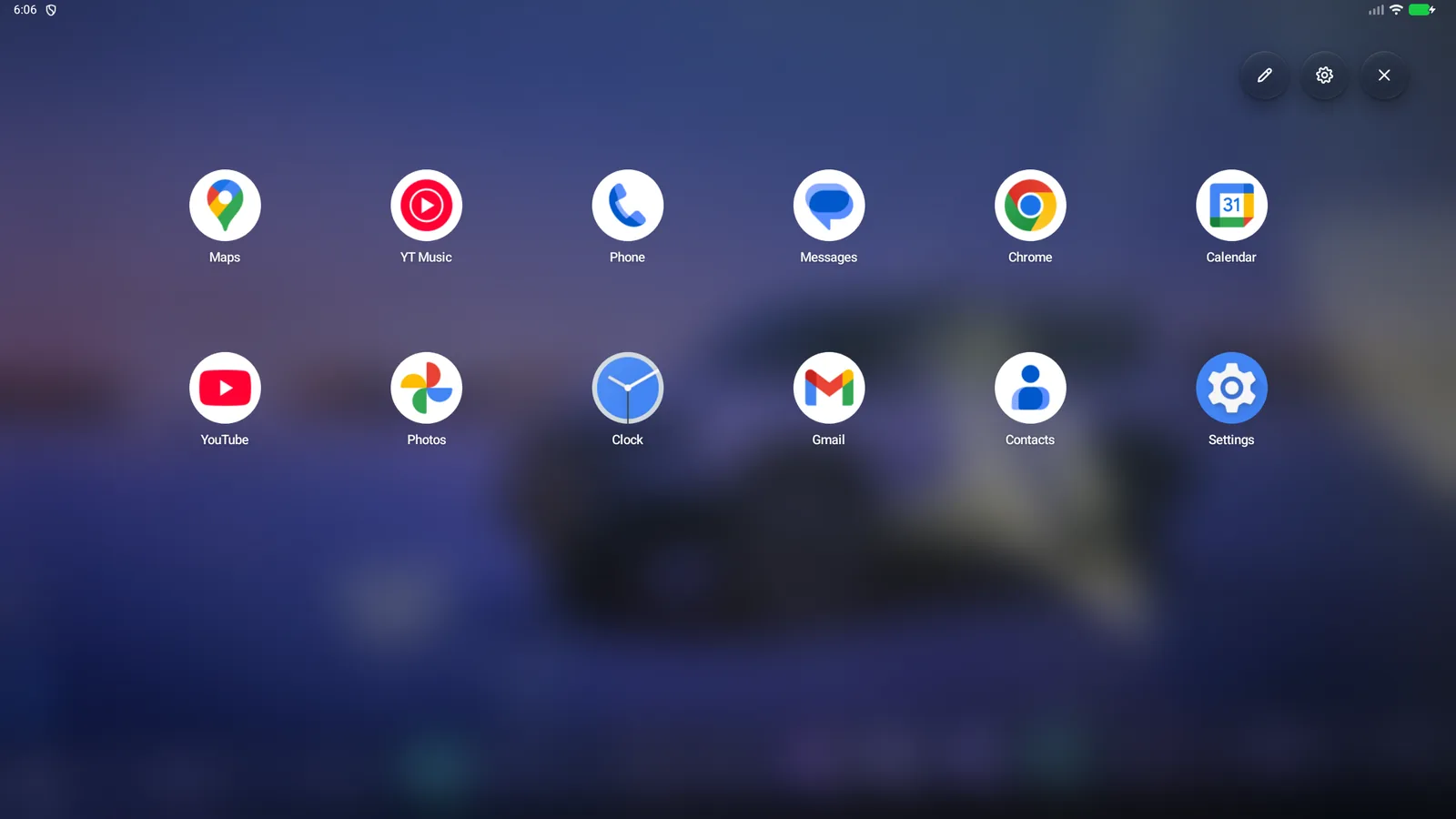
Tap for DisplayMirror's app grid, long-press for your favourites.
Any app you choose, one tap away.
Install and set up from a computer's browser, in one go.
A short tour on first run. Replay it any time from About.
Fades away for other apps, panels, dialogs and the keyboard.
The strip, car data and prayer times need no internet.
Four glass clarities, edge light, twelve accents and four strip sizes.
Alignment, margin and lift, previewed live on the real strip.
From inside the app. Your layout and settings stay.
With a full right-to-left layout.
Screenshots
Captured at the car's screen resolution, 2560 × 1440.
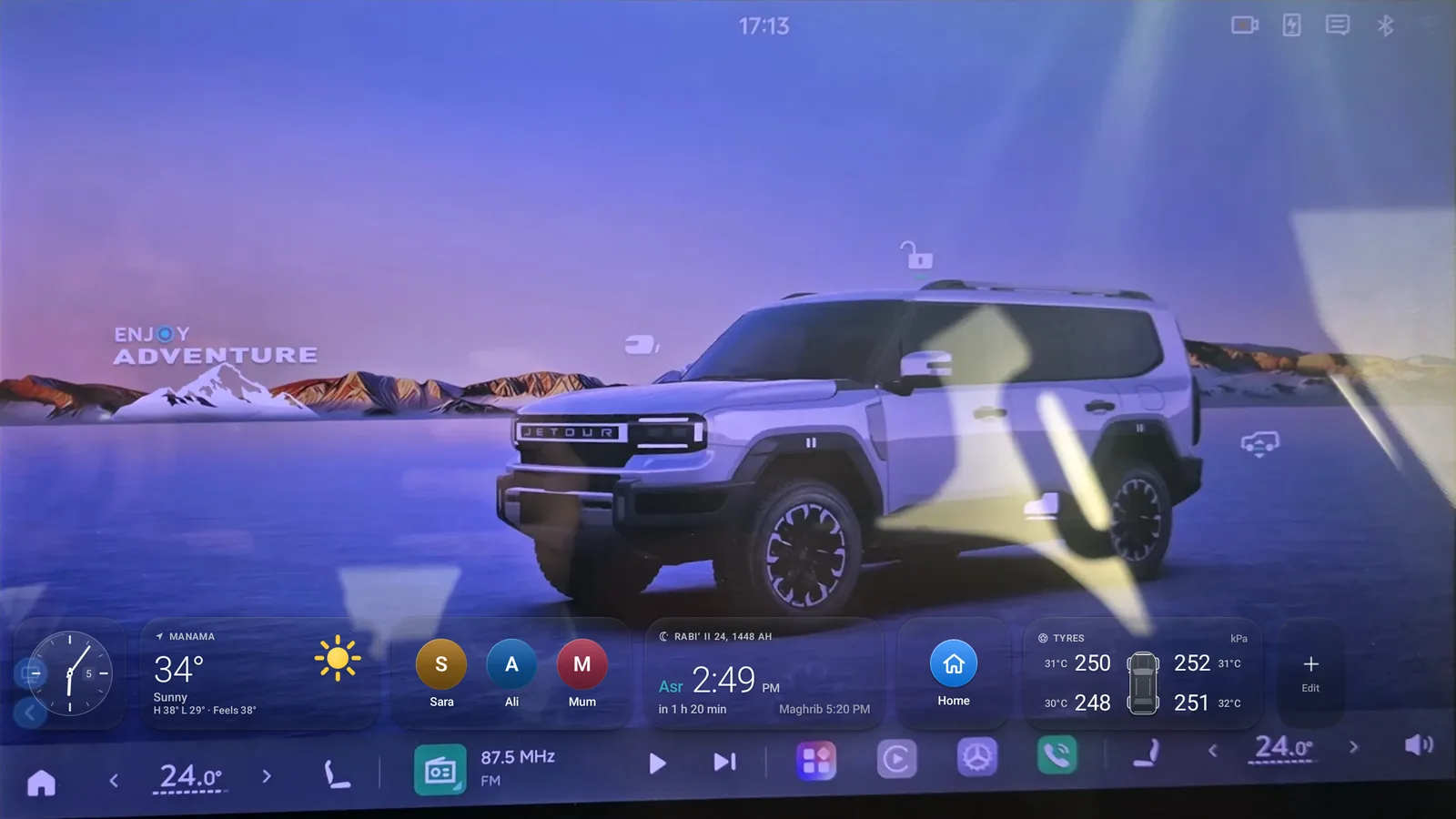
Weather
Tap a weather card for the next hours, ten days, air quality and dust, UV, wind, sun and moon.
It opens on the car's last place, follows GPS, and falls back to a city you choose.
Launcher
Long-press the Apps card and your favourites float over whatever is open, behind a soft blur.
Press and hold an icon to edit: drag to reorder, add or remove apps.
Install
Both are free, with no root and no account. You need a Jetour G700 with the stock head unit (Android 14).
home.g700.mahmoodmajeed.com/install in Chrome or Edge.It installs the app and switches on every permission. Nothing else to set up.
Chrome or Edge on Windows, macOS, Linux or ChromeOS. Use a data cable, not a charge-only one.
If the car asks “Allow USB debugging?”, tick Always allow, tap Allow and run the setup again.
Short link for the car: home.g700.mahmoodmajeed.com/download always starts the latest APK.
Both ways grant the same things. Every one is optional: a missing grant only switches off its own feature.
Then press Home. The strip appears above the dock, and a quick tour shows you around.
Privacy
No sign-in, no analytics, no ads. Nothing about you or the car is collected.
Weather, place search and update checks. Everything else works offline, prayer times included.
Car figures are only ever read, never written, and never leave the head unit.
Location is only for the weather and prayer times, and contacts stay on the head unit. Media access only lists what's playing. Accessibility sees window types and positions, never screen text, and never acts for you.